If you are looking for an AI assistant that actually does work for you, reading mail and booking meetings, the name Grok Bot has probably crossed your screen. What sets it apart from an ordinary AI chat is that it gets a computer of its own: a Linux machine on Cursor's servers, not your Mac. At Productize we already run several AI assistants that split the work, one helps write, another reviews (assistants like these are called agents). So we wanted to know how far Grok Bot's computer could be connected to our team of agents.
On the afternoon of Saturday, October 10, the first route we tried was letting our agent log into Grok Bot's computer directly over SSH (a way to run commands on another machine from a distance). That needs our machine and its machine to see each other first. So while chatting with it in the app, we installed Tailscale (a private network tool that lets several machines see each other as if they were in the same house) on Grok Bot's computer. That computer lets you install extra programs, like any ordinary computer. Then we watched the list of machines on our network. Before long, Grok Bot's computer showed up. The two sides could see each other.
About a minute later, that computer showed as offline.
At first we thought it had broken. SSH got no reply. But when we messaged it in the app again, the computer came back, with every file and program we had installed still there. It had not broken. It had gone to sleep. Once that conversation ended, its computer went still and waited until someone woke it.
That minute changed our question for the rest of the afternoon. Before it, we thought what many people think: that Grok Bot is one more AI agent you can plug into a system or a team of agents, always waiting for work, like a service other programs can call at any time. After it, we saw something else: an assistant with its own computer, and that computer sleeps whenever nobody is talking to it. What it really gives you comes down to 3 things: accounts you log into once through connections the app already offers; quota (the amount of use your plan gives you) that is separate from your other AI plan; and a computer with a screen, which you can tell to open websites in a real browser. We tested that last one late the same afternoon.
That afternoon, Productize tested Grok Bot by connecting it to this team of agents, sending it tasks we already knew the answers to, and checking the answers. The test numbers below come from our log of that afternoon. Anything we only saw in the app is marked where it appears. What follows is written for 2 kinds of people. The first group is starting from zero and wants an AI assistant that does real work without an IT team. The second group already runs a multi-agent setup and is weighing whether to connect Grok Bot too.
Part 1What is Grok Bot, and how is it different from chatting with ChatGPT or Claude?
Grok Bot is an AI assistant app for Mac. Each assistant in the app gets its own Linux computer. In this post, Grok Bot means the assistant you get inside the app (the app itself is called Grok); the app calls each assistant an agent, but to keep them apart from our own agents, we just call it Grok Bot, or the bot. Chatting with ChatGPT or Claude the way most people do ends with an answer in the window. Grok Bot does the work on its own computer and in the accounts you log it into, such as reading mail, adding calendar events, or opening a website in Chrome on that computer.
What we tried was the Mac (macOS) app, version 0.68.1. The app is called Grok, but it belongs to Cursor, a company that makes AI coding tools (the tool is also called Cursor). What we saw with our own eyes: the app, the app package, and the sign-in screen, which reads Sign In with Cursor, all belong to Cursor, and every use is deducted from your Cursor plan. Which model runs inside, and how it relates to xAI (the company that makes the Grok models), we did not check. If you have never used Cursor, think of it as an account you have to sign up for before you start. We have not included plan prices, because that is not something we measured; check with Cursor when you sign up.
The machine the bot gets runs Linux (Debian 13) and takes extra programs, the way we installed Tailscale ourselves. But the app has an Update Computer button, and pressing it wipes every extra program you installed. The machine also has a screen you can see in the app, and Chrome to use on it. Late in the afternoon we sent it a task to open a web page, and it did (results in Part 2).
The app also comes with many account connections ready to pick from. The ones we saw: Gmail, Google Calendar, Slack, Notion, Atlassian, 1Password, X (formerly Twitter), and two or three more tools for posting to social media and sending mail. Recurring work can be set up as a routine right from the chat, either on a schedule or when an event happens.
Picture an assistant with a desk of their own. Everything on the desk stays where it was, but the assistant only sits down when someone calls their name, and leaves when the call is over. The desk is the computer and the connected accounts. The moment the assistant leaves is the moment the computer sleeps.
So what can call it? The most direct way is to message it in the app, as we did at the start. But that needs a person typing. If you want another system or an event to wake it, the app offers only a few ways. We tested just one of them, the webhook routine:
- A Slack channel you have invited it into. Send a message there and it should wake up to answer (not tested).
- A webhook routine. Another system sends a message to the routine's address along with the routine key, and it wakes up to work.
- A scheduled routine. When the time comes, it wakes up and does the work itself. We set up the morning routine in Part 3 this way, but have not watched it run while the computer was asleep. According to the app's documentation, a routine can wake a sleeping computer, but the only kind we actually tried was the webhook kind (the work in Part 2).
- A routine that listens for events from GitHub, Linear, Sentry or PagerDuty (not tested).
- Email sent to the bot's own inbox, but only if you have set up a routine to catch that kind of mail first (not tested).
A routine's webhook (a web address the app gives you; send a message to it and the bot wakes to do that message's task) lets other systems reach the bot, but only for the task that routine was set up for. You have to set the routine up in advance to say what happens when a message arrives. What we did not find in the documentation is a general API that would let another program send in any command it likes. And if you were hoping to command it through Discord or Telegram, we found neither anywhere in Grok Bot's user documentation.
Part 2One afternoon with Grok Bot: what we did and what we measured
The goal for that afternoon was short: let our agents send work to Grok Bot and get an answer back in a form we could trust, not just delivered.
The first route we tried, and why it did not get there
Before starting, we read an open-source bridge that another developer had published. It reaches the bot by logging into its computer over SSH. We installed Tailscale earlier in this post to take that route, but it never got as far as actually running work. From reading that bridge's notes, we learned its author's machine stayed awake for hours on an older version of the app (we did not try that version ourselves). Ours slept within about a minute after the conversation ended. Whether the newer app is designed to sleep, we do not know. When we tried SSH, there was no reply. To use this route you would need a way to keep it awake all the time, for example a routine that wakes it often, even when there is no work. Every time it wakes and works counts against your Cursor plan's quota. A webhook routine only wakes it when work arrives, so we chose that.
Even without using that route, we took something away from that bridge. The lesson: delivered does not mean done. That bridge logs every task and always keeps the states "delivered" and "done" visibly apart.
The route we used: wake it with a webhook, then have it send the answer back
We had Grok Bot create 1 routine. When work arrives at the webhook, it wakes, does the work, and sends a callback to the one-time return address attached to the task. On our side we wrote a small relay to send tasks and receive answers. The first task was for it to inspect its own computer and report back the machine name, the system version, and the number of files. This was not yet a task that takes skill. We chose it because we already knew the truth, so we could check every answer. Every task carries a task id, and the relay writes every step to our log.
| What we tested | Result we measured |
|---|---|
| Send a task to wake the routine | Grok Bot's side confirmed it had the task in 0.56 seconds (accepted only, not yet done) |
| Bot wakes, does the work, sends the answer back | 18.5 seconds from sending, running 4 commands along the way |
| Is the answer true? | It matched the real machine, the task id came back identical to the last character, and the list of commands it ran came attached as proof |
| We sent a fake answer to the relay ourselves, to a return address the relay never created | Rejected (HTTP 403, "not allowed"). Our log did not change at all |
| Try changing the routine key, as you would have to if it leaked | No button to create a new key. You have to delete the routine and create a whole new one. A task sent with the old key was rejected |
| A second task with the new key | Answered in 15.7 seconds |
| The bot's computer while waiting for work | Sleeps when the conversation ends. It had joined the network and showed as offline within about a minute |
It also did one thing we never asked for. While creating the routine, Grok Bot added 1 safety rule by itself: if a task would send a message to a person, pay money, delete data, or reveal a secret, the bot would refuse the task and reply that it failed, giving the reason. We like that rule. But a careful bot is not a reason to trust the result. What actually makes it trustworthy is the checking on our side.
Late in the afternoon: a task that needs the screen
Before the day ended, we sent one more task through the same relay: open one of our own blog posts, already public on the web, in Chrome on its own computer, and send back a screenshot. From sending the task to getting the result back took about a minute.
- The Chrome it used was version 154. The bot read the version number from the chrome://version page itself.
- The screenshot is 900×514 pixels and shows a real render: a cookie banner the bot did not accept, the heading in the site's orange accent color, and Thai fonts displayed in full. So it opened the page in a real browser, not just fetched the page's code to read.
- The page's main heading (h1) matched, to the last character, the one we fetched from the same page's code ourselves.
- For the subheadings (h2), the bot counted 4 from the image, while the post's code actually has 5. The bot said itself it had counted by eye, and by its own estimate the real number might be 5 to 7.
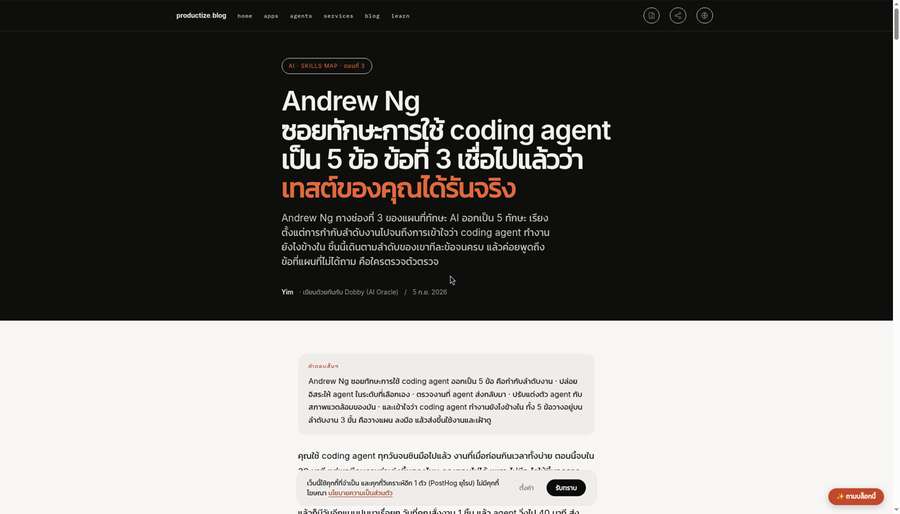
We like that last point. The bot did not fake confidence; it said itself that the number came from counting by eye. Taken together, the results say the screen on that computer really works: tell it to open a website and it sees what a person would see. Tasks that need several clicks in a row or filling in a form, we have not tried yet.
Part 3The fork: starting from zero, or already running agents
Going back through the log of that afternoon, we saw that the same Grok Bot gives 2 groups of people unequal things. One gets a whole assistant. The other gets an extra pair of hands with a screen of its own.
| Topic | Starting from zero, no IT team | Already running several agents |
|---|---|---|
| What you get | 1 assistant with its own computer and logged-in accounts, no server to look after | 3 additions: quota separate from your other AI plan (its size we have not measured), accounts through connections the app already offers, and a computer with a screen that really opens websites in Chrome (tested on 1 task) |
| What you have to build | Nothing. Sign up for a Cursor plan and set up routines in the chat | A small relay that checks answers itself |
| Sending work from other systems | Not needed | Yes, through routines or a Slack channel (we tested only the webhook routine). No general API |
| How far you can trust results | Read its report, then open the real thing and look yourself | The relay confirms the answer belongs to that task and keeps the attached proof for you to look at. Whether the content is right, you still judge from the proof yourself |
| Our verdict | Worth trying if the Cursor plan price and your task volume work out. We measured neither, so check both first. What we can confirm: you set up an assistant without writing code | You can connect it. Use it as extra hands, for example for work that needs a website opened, not as the core of your system |
Starting from zero: what work to give it, and what not to
The clearest example did not come from the afternoon test. It came from a routine we had set up in the app before the test day, so it is not in the test log. We use it as an example of how easy setup is, not as proof that it is accurate. Every morning it reads 4 inboxes, picks out anything with a date and adds it to the calendar, then reports what it added. A routine like this is set up by typing in the chat. Count the steps: install the app, sign in, connect Gmail and Calendar, then type what you want it to do every morning. That is all. No server to rent, no code to write. For a business owner without an IT team, this takes fewer setup steps than any other route we have seen between "I want an assistant" and "I have one set up".
But what we are praising is how easy it is to set up, not how well it runs. How many times this routine put something wrong on the calendar or missed something, we have not counted yet. Nor is it a claim about value: we measured neither the plan price nor the quota one task uses. Before signing up, check the price with Cursor and think about how many runs a day you want, because a routine that wakes often uses quota often. And because the computer sleeps, a morning routine depends on the schedule waking it. The app's documentation says it can; we have not watched it happen.
Work to give it:
- Reading mail and adding events to the calendar, or a morning mail summary
- Work that uses the accounts already connected, such as Gmail, Calendar, Slack, Notion
- Repeating work on a schedule or on an event, which can be set up as a routine
Work not to give it yet:
- Anything that cannot be undone, such as messaging customers, paying money, or deleting data. Have it prepare the step and press the button yourself (we wrote separately about what should wait for a human in Human in the Loop: a three-tier model)
- Secrets or files you do not want to leave your machine, because everything the bot uses lives on a machine Cursor runs, not on yours. And any account you connect means opening that account's contents for it to read
- Work that depends on programs installed on its computer, because pressing Update Computer wipes them all
Already running agents: can you connect it, how, and what to build
Yes, and we finished connecting it in one afternoon. The route was the webhook routine described in Part 2. But first ask yourself what Grok Bot adds to the team you already have. Our answer is 3 things. First, quota separate from your other AI plan, because every time the bot works it is deducted from your Cursor plan, not from the plan your other agents use. Second, accounts through connections the app already offers, such as Gmail, Calendar, Slack, which your other agents may not be connected to yet. Third, a computer with a screen: you can send it work that needs a website opened in a real browser and get a screenshot back as proof, as we tried in Part 2.
We do not yet recommend using it as the core of an automated system. Its computer is not awake waiting for work. Something has to wake it, such as a webhook routine, a schedule, an email routine, or a message in a Slack channel. Once woken, it works, then goes back to sleep. And we found no API for other systems to call it directly, so work from other systems always has to go through a routine, and how work gets in is in Cursor's hands, not ours. If Cursor changes it one day, our side has to change too.
If you decide to connect it, build a relay in the middle first. The relay has to live on a machine that can receive messages from the internet, because the bot's answers have to travel back to it. Ours is written in Node.js (a tool for running JavaScript on a server) and depends on no one else's code. Codex (another coding AI) wrote it from a written description in about 8 minutes, and installing and testing it against the real thing took about 20 more. We are not sharing the code in this post, but here is what one task's round trip looks like.
Before the first task. Set up 1 webhook routine, and tell it in the chat: when a message arrives, do the task inside that message, then send the result back the way the message says. So one routine can take many kinds of work. The self-inspection task and the website task in Part 2 both went through the same relay.
Going in. The relay sends 1 message to the routine's webhook address. The routine key travels in a header (extra information attached to the message, apart from the task text), and lives only on the relay side. The message carries the task written in plain language, a task id, a fingerprint of the task text (a value computed from it; change one character and the value changes), a deadline, and the one-time return address. We write that return address straight into the end of the task text, with an instruction to send the result back there and attach proof. Grok Bot acknowledges right away that it got the task, but that only means it was received, so the relay records it as delivered and nothing more. If no acknowledgement comes, or the wait times out, the relay records it as uncertain and does not resend.
Coming back. When the bot finishes, it sends 1 message to that return address. It carries the task id and fingerprint copied back from the message we sent, a status (done, failed, or partial), the answer, proof such as the list of commands it ran or a screenshot, and the time it finished. The relay checks 3 things before counting it as done: the return address is one the relay created and is not past its deadline, the task id matches, and the fingerprint matches to the last character. Only when all 3 pass does it show as verified. The proof, the relay keeps for you to look at; it does not judge right or wrong for you.
Both directions follow these 5 principles, which we think any relay needs.
- Check that the answer really belongs to this task before counting it as done. The answer has to arrive at that task's one-time return address (next item), and the task id and fingerprint have to match what was sent to the last character. If any of these is missing, we do not count it as done yet. Also ask for proof in the task text every time, such as the list of commands it ran, because whether the content of the answer is right, you or another agent still have to judge from that proof.
- Attach a one-time return address to every task. The relay randomly creates a new one for each task. An answer that arrives any other way is rejected immediately, so the bot never has to hold a permanent secret for replying to us.
- Log every step by appending, never editing old entries. When it was sent, whether it was accepted, what it answered, whether it passed the check. Every step can be looked back on.
- Never resend work on its own. If you are not sure it was delivered, log that you are not sure and wait for a person to look, because a resend can make the bot do the same task twice.
- If there are 2 conflicting answers for the same task, keep both and label them as ambiguous. Do not pick one to believe.
These principles were not there from the start. Our first draft had the bot answer into our team's chat channel and hold a permanent secret for replying to us, used every time. When we had Codex review it, the design changed in 3 places. First, answers have to come back to our own server. Second, the permanent reply secret became a one-time return address. Third, Codex suggested borrowing the logging approach from that bridge instead of inventing a new one.
The relay has 7 automated tests, but tests that all pass can also mean nothing is being checked. So we deliberately switched off the part that checks the return address, and the test that should catch it did fail, as expected. A checker we have never seen catch something wrong, we do not count as working. We apply the same rule to every guardrail (a rule that keeps an agent from making mistakes) on our team (written up in Agent harness: which guardrails have expired).
Part 4What to watch out for before using Grok Bot
What tripped us up most happened when we went to change the routine key. We asked Grok Bot how to create a new key. It said there was a button for it. When we opened the panel, the key field was read-only, and the button it described did not exist. The only way was to have it delete the routine and create a whole new one. And the key is shown in full on screen every time you open the panel. Before you put it to real use, there are 4 things we want you to know.
- Every task you send uses quota, deducted from your Cursor plan. A routine that wakes often uses it often. How much one task uses, we have not measured yet.
- The routine key is shown in full on screen every time you open the panel. Anyone who sees your screen sees the key. Be careful when sharing your screen or recording a tutorial.
- "Done" from the bot is not proof. Always have it attach something you can check, such as the list of commands it ran, then check on your side. It is the same thing we ran into with coding agents, the agents that write code for you (more in AI engineering skills map: using coding agents).
- The Update Computer button wipes the programs you installed. If you installed anything extra, you have to install it all again after pressing it.
Part 5What we have not measured yet
One afternoon answers only some questions. We have not measured the following yet, so we cannot draw conclusions about them.
- Quality of work compared with Claude or Codex. The tasks in Part 2 had answers we already knew, not real work that takes skill. What we have tried is two summaries of the same English article, one from Grok Bot and one from Claude, judged blind by Codex: Grok Bot 8.5/10, Claude 9/10, zero factual errors each. One piece is not enough to conclude anything.
- How much quota one task uses, and what a Cursor plan costs. Check prices with Cursor when you sign up.
- How accurate the morning routine is. How many times it put something wrong on the calendar or missed something, we have not counted.
- Whether scheduled routines really run while the computer is asleep. The app's documentation says a routine can wake the computer, but we have only seen the webhook kind do it.
- What happens if the computer falls asleep in the middle of a long task.
- Whether a routine has ever run twice from a single wake. Our relay is built for that case, but we have never seen it happen.
- Whether it is available on Windows or mobile. We only tried the Mac app.
- Which model runs inside, and how it relates to xAI's Grok. We did not check.
When we get the numbers, we will come back and add them to this page.
Part 6Where to start
If you are starting from zero
- Connect the accounts you use every day first, such as Gmail and Calendar, and know that connecting any account lets the bot read what is inside.
- Make your first routine one that reads and reports, such as a morning mail summary. If you also want it to add calendar events, have it report every time what it added.
- Read the reports and compare them with the real thing for about a week before letting it do anything that cannot be undone.
If you already run agents
- First find work that needs accounts through connections the app already offers, work that needs a website opened in a real browser, or work whose quota you want to keep apart from your main plan. If there is none, you do not need to connect it yet.
- Set up a webhook routine that does the task it is sent and sends the result back, then write a relay that sends and receives as in the round trip above, following the 5 principles.
- Make the first task one you already know the answer to, then try sending a fake answer to see whether the system really rejects it.
Grok Bot does not replace the agents you have. It is an assistant with a desk of its own. So the question to ask is not "how do I plug it into my system" but "which work do I want the assistant to come and do at that desk?"
- The test numbers come from our own test log, October 10, 2026. The app version and the morning routine come from what we saw in the app the same day: the Grok Bot app for macOS, version 0.68.1 (package
com.anysphere.sand, signed in with a Cursor account), connected to our team of agents through a webhook routine - The website task and the summary test come from our test log late on the same afternoon. The screenshot in this post is the image the bot sent back
- Cursor is an AI coding tools company, per the company's website: cursor.com
- The relay principles come from the one we wrote and actually tested the same day, including Codex's review of our first draft
- The way to reach the bot over SSH comes from an open-source bridge another developer published, which we read before starting
Read next: AI engineering skills map: using coding agents · Human in the Loop: a three-tier model · Agent harness: which guardrails have expired